How to Generate a Windows Hardware Inventory Report
Your one-stop solution for all your computer information needs.Latest SIW version: 16.16.1014 Released: October 14th, 2026 • What's new Download the free 14-day trial Buy SIW
Short answer
For a built-in Windows hardware inventory, run msinfo32 /nfo to create an NFO file or msinfo32 /report to create a text file. For a broader hardware inventory and selectable output formats, use SIW reports. SIW can create HTML, JSON, CSV, TXT, XML, short reports, and database-oriented output.
Generate a hardware report with Windows System Information
Open Command Prompt or PowerShell and choose the format you need:
msinfo32 /nfo "%USERPROFILE%\Desktop\system-info.nfo"
msinfo32 /report "%USERPROFILE%\Desktop\system-info.txt"
/nfo saves an NFO file that can be reopened by System Information. /report saves a text report. You can also open msinfo32 interactively, select System Summary, Components, or Hardware Resources, and use its File menu to save information. The command-line form is easier to reproduce when supporting several computers.
For a focused report, Microsoft documents category switches such as /categories +systemsummary. For example:
msinfo32 /nfo "%USERPROFILE%\Desktop\system-summary.nfo" /categories +systemsummaryBefore exporting, decide whether the report is for troubleshooting, asset inventory, or a purchase/upgrade decision. A focused report is easier to review and reduces the amount of serial-number, network, and software information that must be redacted.
Generate a hardware inventory report with SIW
- Run SIW and allow the hardware modules to finish collecting information.
- Use the report or save function to select the required output format and destination.
- Choose a short report for a quick support summary, or include the detailed modules needed for the problem.
- Open the resulting file locally to confirm that it contains the expected sections before sending it.
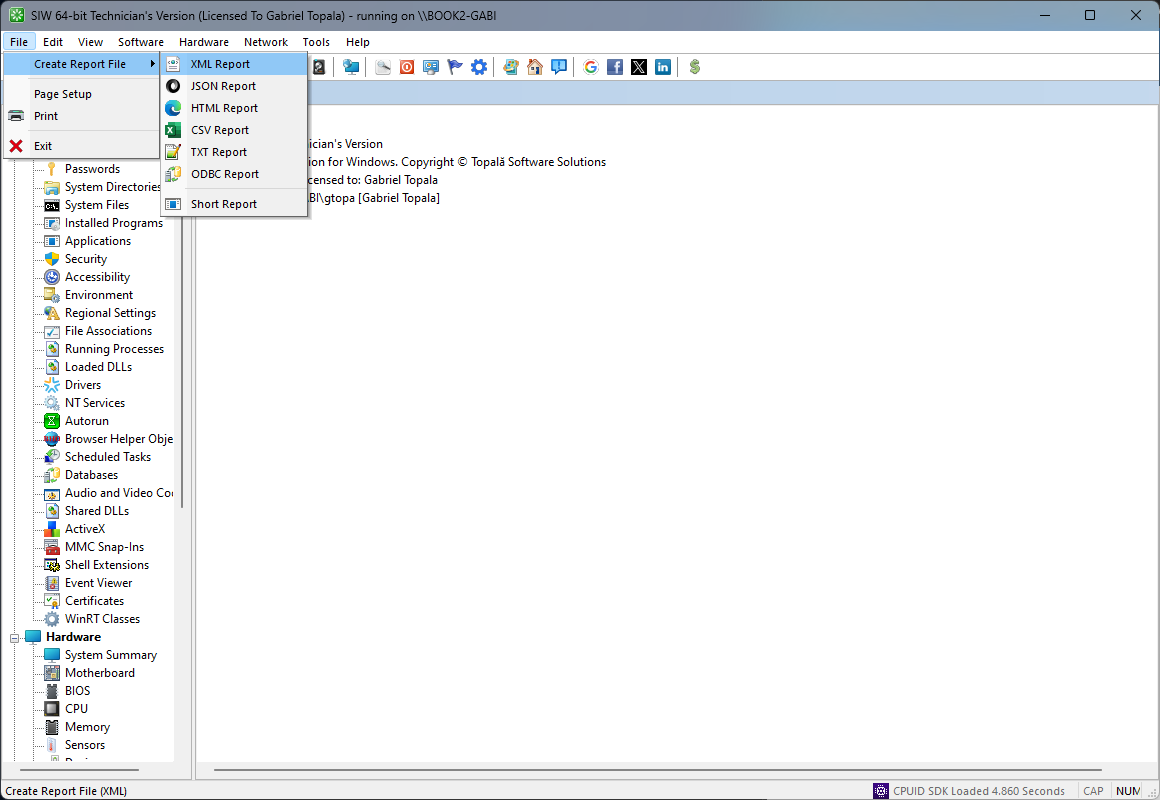
For repeatable or unattended collection, SIW supports command-line report options. Examples include:
SIW.exe /log:html="C:\Reports\computer.html" /all
SIW.exe /log:json="C:\Reports\computer.json" /all
SIW.exe /log:xml="C:\Reports\computer.xml" /all
Report paths should be absolute. See the SIW command-line reference for CSV, TXT, compression, append, short-report, and database options. Sample output is available on the SIW report samples page.
Protect information in exported reports
System reports can contain computer names, user names, serial numbers, product keys or partial keys, installed software, network addresses, shares, storage identifiers, and security-related configuration. Before posting a report publicly or sending it to someone outside your support chain:
- Keep the original report in a protected location.
- Remove or redact personal data, license information, serial numbers, network details, and credentials.
- Send only the modules needed to answer the question.
- Never include passwords or SMTP credentials in a report command or attachment.