How to Check CPU Temperature in Windows 11
Your one-stop solution for all your computer information needs.Latest SIW version: 16.16.1014 Released: October 14th, 2026 • What's new Download the free 14-day trial Buy SIW
Short answer
Windows 11 does not provide a universal built-in interface for displaying CPU temperature. Temperature information is typically obtained from hardware sensors through monitoring software. SIW (System Information for Windows) can display available temperature readings when the system's monitoring hardware is supported.
The UEFI or BIOS setup screen may show a temperature on some computers, but that is a firmware view rather than a live Windows desktop reading. Task Manager shows CPU utilization and frequency; it is not a general CPU temperature monitor.
Windows built-in options
- Restart the computer and enter the UEFI or BIOS setup using the key shown by the manufacturer, often Delete, F2, or F10.
- Open a page named Hardware Monitor, Monitor, PC Health, or a similar name.
- Read the CPU temperature shown by the firmware, then exit without changing settings.
This is useful as a comparison point, but it is measured before Windows has loaded and may use a different sensor or calibration profile. Windows built-in utilities such as Task Manager and System Information do not expose a consistent CPU temperature field across hardware vendors. A PowerShell or WMI query can retrieve vendor-specific data on some systems, but there is no universal Windows class that works for every CPU and motherboard.
Check available readings in SIW
- Run SIW.
- Expand Hardware and select Sensors.
- Look for CPU, package, core, socket, or motherboard temperature entries.
- For processor identity and static specifications, also open Hardware > CPU.
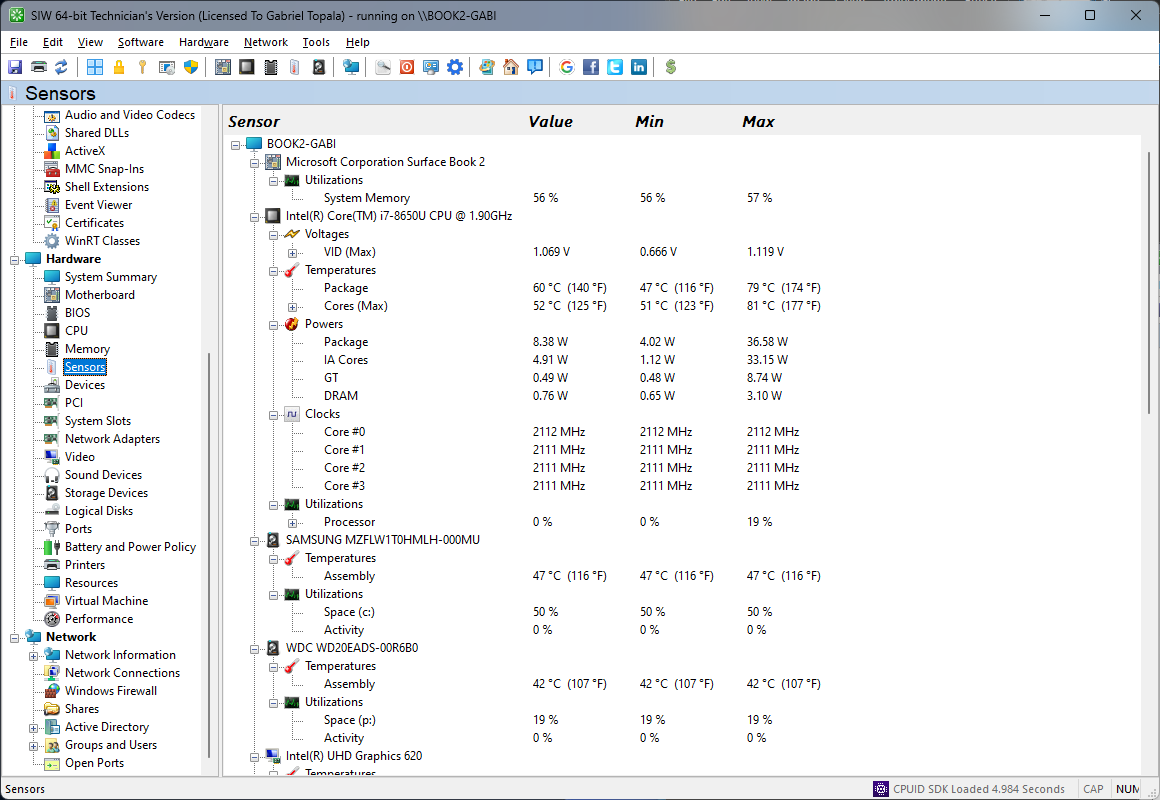
Record the sensor label as well as the value. A reading called CPU Package is not necessarily the same measurement as an individual core reading, and a generic motherboard label may describe a socket, board, or auxiliary sensor rather than the processor die.
How CPU temperature sensors work
Modern processors contain on-die digital thermal sensors. The processor can expose a package or junction value, and in some designs it exposes separate values for individual cores. The platform may also expose readings through an embedded controller, a Super I/O monitoring chip, ACPI methods, SMBus, or a vendor-specific interface.
Those paths are not interchangeable. The label CPU Package usually represents a package-level or hottest-point value, while a core value represents one sensor location. AMD systems may use labels such as Tctl or Tdie; Intel systems may expose package and core values. Firmware can apply offsets or calibration, and a third-party program has to identify which raw input belongs to which physical sensor.
Temperature also changes with workload, power limits, fan curves, room temperature, and sampling interval. Compare like with like: use the same sensor label, observe idle and sustained load separately, and do not treat one instantaneous number as a complete thermal diagnosis.
Why a CPU temperature may be missing or inaccurate
- The motherboard or laptop firmware does not publish the sensor to Windows.
- The monitoring controller or newer chipset is not supported by the reader.
- A virtual machine has no direct access to the host's physical sensors.
- The firmware uses a vendor-specific calibration or combines several inputs.
- A sensor input is unused, mapped to a different component, frozen, or reported with an impossible value.
SIW can only report values that the hardware and firmware make available. If a value is absent, compare it with the UEFI hardware-monitor page or the computer manufacturer's monitoring utility. For related sensor troubleshooting, see Why Fan Speed Is Not Detected and the SIW fan-speed FAQ.