How to Check SSD Health and SMART Information
Your one-stop solution for all your computer information needs.Latest SIW version: 16.16.1014 Released: October 14th, 2026 • What's new Download the free 14-day trial Buy SIW
Short answer
Windows can expose a basic health summary for some NVMe drives in Settings > System > Storage > Advanced storage settings > Disks & volumes. PowerShell can show the physical disk status and, when the storage provider supplies them, reliability counters such as temperature, errors, wear, and power-on hours. SIW can provide a broader storage inventory and SMART or NVMe attributes when the device and driver make them available.
No single health status proves that an SSD is safe. Back up important data before investigating a warning, and treat a deteriorating health indicator or unexplained errors as a reason to plan replacement.
Check health in Windows Settings
- Open Settings.
- Go to System > Storage > Advanced storage settings > Disks & volumes.
- Select the physical disk, open Properties, and look for a Drive health section.
On supported NVMe devices, Windows may show indicators such as estimated remaining life, available spare, and temperature. The section is not shown for every SATA SSD, USB enclosure, RAID volume, virtual disk, or storage controller. An absent section means that this Windows interface does not have the required health data; it does not prove that the drive is healthy or unhealthy.
Use PowerShell storage counters
First list the physical disks Windows can see:
Get-PhysicalDisk |
    Select-Object FriendlyName, MediaType, HealthStatus,
        OperationalStatus, Size
Then request reliability counters:
Get-PhysicalDisk |
    Get-StorageReliabilityCounter |
    Format-List DeviceId, Temperature, Wear, PowerOnHours,
        ReadErrorsTotal, WriteErrorsTotal
The counters are provider-dependent. A blank Wear or Temperature value often means that the drive, USB bridge, RAID layer, or driver did not pass that attribute through Windows. HealthStatus is a high-level state, not a complete SMART report.
Check SSD health and SMART data in SIW
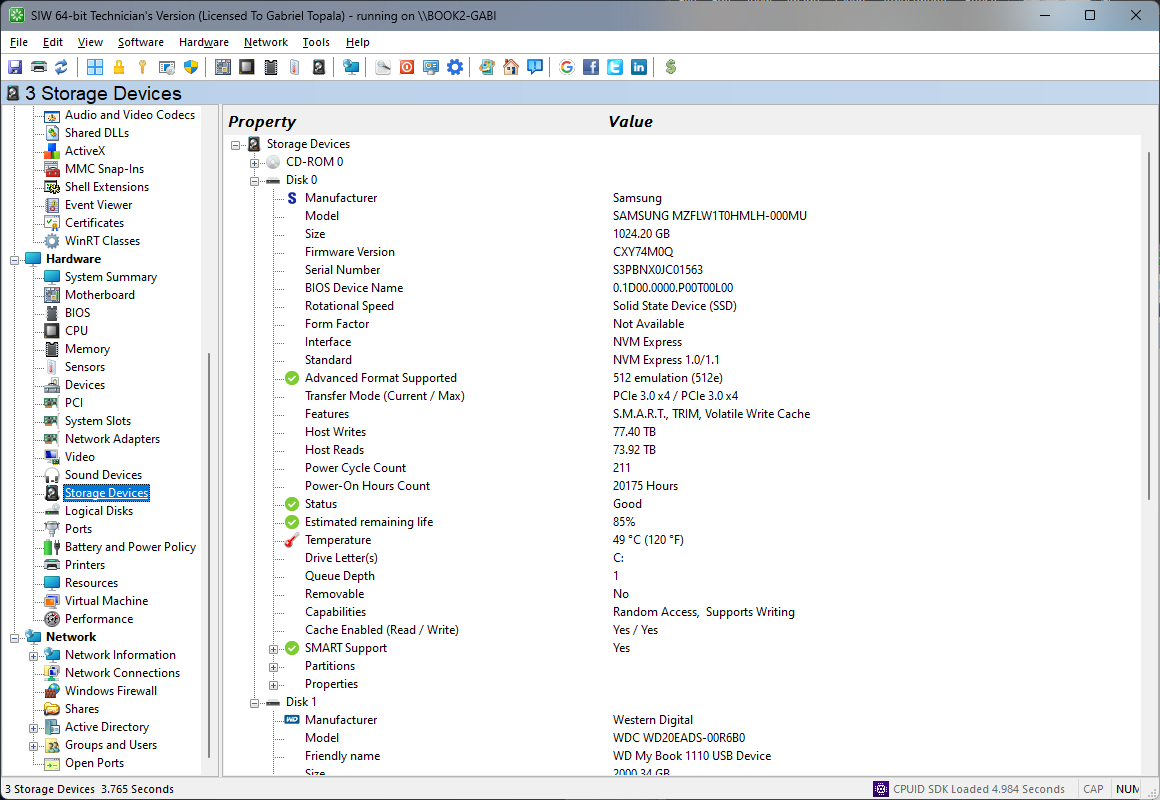
- Run SIW.
- Expand Hardware and select Storage Devices.
- Identify the physical SSD or NVMe device by model, serial number, firmware revision, interface, and capacity.
- Review SMART or NVMe attributes and thresholds when the device and driver expose them.
How to interpret SSD health information
SMART and NVMe health fields are vendor-defined measurements with standard names and different practical meanings. Wear or percentage-used values are estimates of endurance consumption, not a countdown to an exact failure date. Temperature is a point-in-time sensor value. Error counters can be cumulative, corrected, or uncorrected, and their significance depends on the drive model.
Compare readings over time, keep firmware and backups current, and investigate increasing uncorrected errors, repeated controller resets, filesystem errors, disappearing devices, or rapidly changing health values. Do not clear SMART data or repeatedly stress a failing drive in an attempt to make the status look better.