How to Check Installed Windows Updates
Your one-stop solution for all your computer information needs.Latest SIW version: 16.16.1014 Released: October 14th, 2026 • What's new Download the free 14-day trial Buy SIW
Short answer
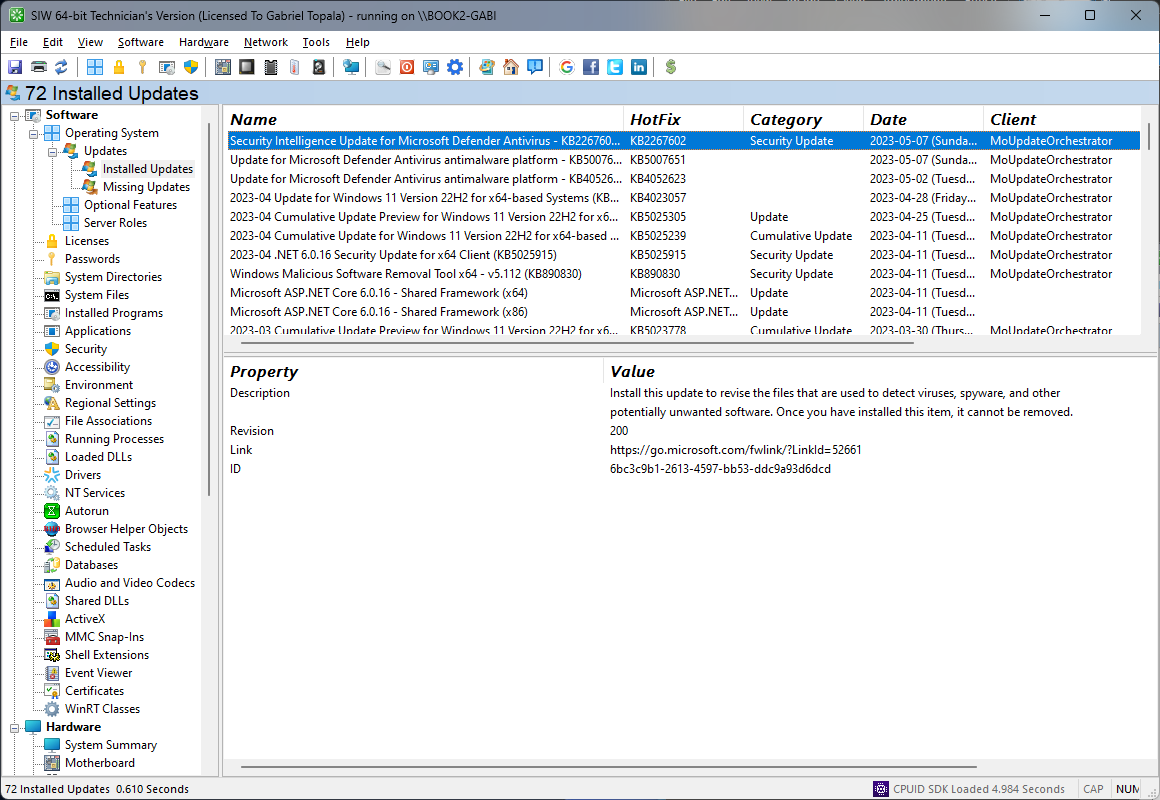
Open Settings > Windows Update > Update history to review recent quality, driver, definition, and feature-update results. PowerShell's Get-HotFix lists hotfix records exposed through Windows. SIW's Software > Software Updates module provides a broader inventory of installed and reported-missing updates for support and comparison work.
Review update history in Windows Settings
- Open Settings.
- Select Windows Update.
- Open Update history.
- Expand a category such as quality, driver, definition, or other updates to see the update name, date, and result.
Update history is the best built-in view for checking whether a recent update succeeded, failed, or requires a restart. It is a history of Windows Update activity, not necessarily a complete inventory of every file or component changed by servicing.
List hotfixes with PowerShell
Open PowerShell and run:
Get-HotFix |
    Sort-Object InstalledOn -Descending |
    Format-Table HotFixID, InstalledOn, Description -AutoSize
To inspect one update by its KB identifier:
Get-HotFix -Id KB0000000Replace the example identifier with the KB number you want to inspect. Get-HotFix uses the Windows Win32_QuickFixEngineering record and therefore does not represent every type of update, feature upgrade, driver, Store package, or Defender definition.
Check updates in SIW
- Run SIW.
- Expand Software and select Software Updates.
- Review installed and reported-missing updates, identifiers, installation status, and related metadata when available.
- Export the information when comparing systems or documenting a support case.
Understand update identifiers and scope
A KB number identifies a Microsoft knowledge-base package, but one cumulative update can replace earlier packages and contain fixes for several components. A feature update changes the Windows release and build, while a quality update generally changes servicing content within that release. Driver, Store, and Defender updates may use different inventory paths.
When comparing machines, record the Windows edition, version, build number, update identifier, installation date, and restart state. A different result between Settings, Get-HotFix, and SIW can reflect different data sources rather than an immediate reporting error.