Why Is My Computer Beeping?
Your one-stop solution for all your computer information needs.Latest SIW version: 16.16.1014 Released: October 14th, 2026 • What's new Download the free 14-day trial Buy SIW
Short answer
A beep before Windows loads is often a firmware signal from the computer's power-on self-test, or POST. On some systems, one short beep followed by a normal startup is expected. On other systems, a repeating pattern can point to a memory, video, keyboard, or motherboard problem. The same number of beeps does not have the same meaning on every computer.
First determine when the sound occurs. A beep before the manufacturer logo needs a different investigation from a sound after sign-in, when Windows accessibility features or an application may be responsible. Record the complete pattern and the exact computer model before buying parts or opening the case.
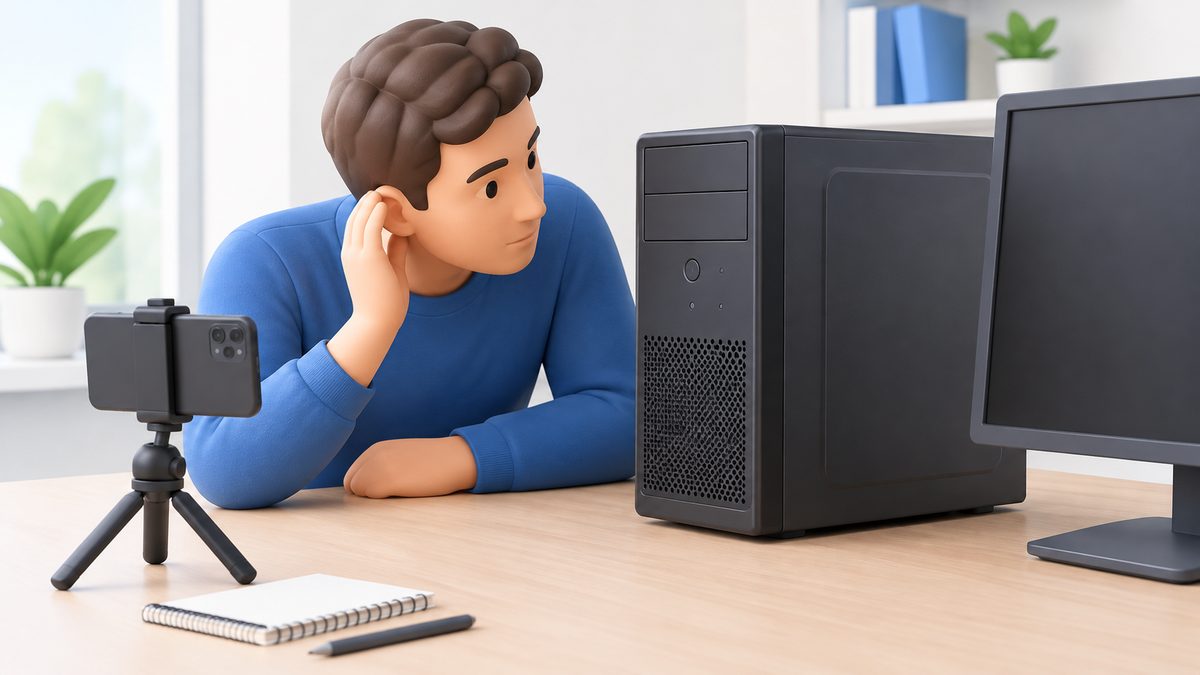
Separate startup warnings from Windows sounds
- Before the logo or during the initial power-on: treat the sound as a possible POST or UEFI/BIOS diagnostic signal.
- At the manufacturer logo: note whether the computer can open its boot menu or built-in diagnostics.
- During Windows loading: record whether the screen shows an error, stays black, or eventually reaches the sign-in screen.
- After sign-in: check whether the sound happens only when pressing Caps Lock, Num Lock, or Scroll Lock. Windows Toggle Keys can deliberately play a sound for those keys.
Support documentation may distinguish No POST, No Boot, and No Video. A computer that reaches the logo but cannot load Windows is not showing the same symptom as one that never completes its initial hardware checks. Dell's startup troubleshooting guide describes these distinctions for Dell systems.
Record one complete repeating pattern
Do not rely on a remembered total after several restart attempts. Listen through the pause that separates one group from the next, then write down:
- the number of tones in one group;
- whether each tone is short, long, or a different pitch;
- the length of the pause and whether the group repeats;
- which power, battery, or keyboard lights flash;
- what is visible on the screen at the same time.
A short phone recording can make the pattern easier to replay. A useful note looks like "two short tones, pause, repeats; screen remains black; power light flashes amber." Keep the repeating group separate from the number of times you heard it. The manufacturer's manual may define the group, an LED pattern, or both.
Do not confuse a beep pattern with a speaker, drive, or fan noise. If the sound changes with volume controls or begins only after Windows starts, record that fact too.
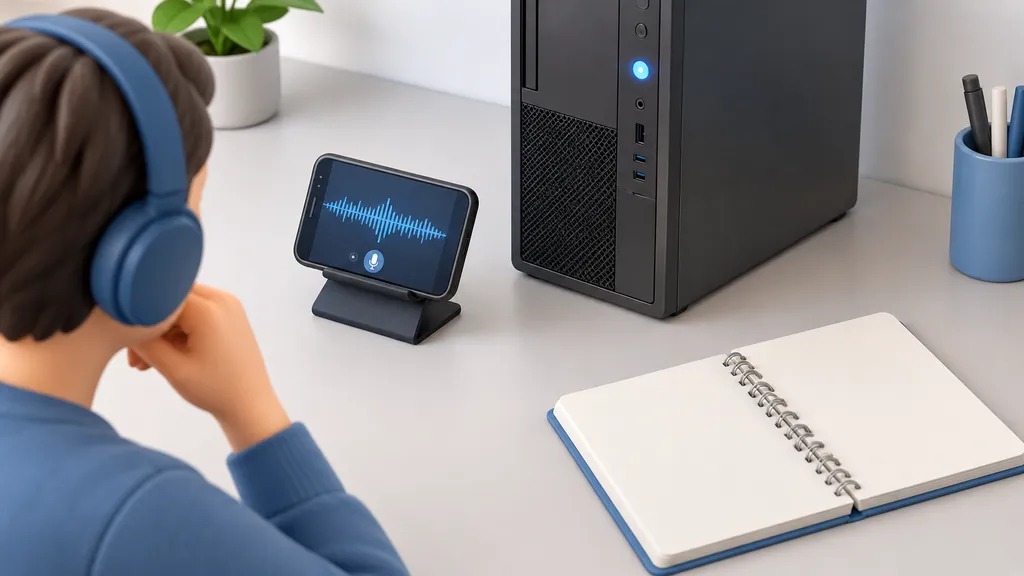
Match the pattern to the exact computer
Use the support page for the exact laptop or prebuilt desktop model. For a custom desktop, use the motherboard model and its manual. A generic search result for "three beeps" is not a diagnosis: vendors use different firmware, speakers, LED conventions, and definitions for the same count.
If Windows still starts, press Windows + R, run msinfo32, and record the System Manufacturer, System Model, BIOS Version/Date, and BaseBoard Product values. You can also query the firmware inventory with PowerShell:
Get-CimInstance -ClassName Win32_ComputerSystem |
    Select-Object Manufacturer, Model

Get-CimInstance -ClassName Win32_BaseBoard |
    Select-Object Manufacturer, Product, Version
SIW can provide the same identification in a broader hardware inventory. Open Hardware > Motherboard and Hardware > BIOS, then keep the manufacturer, model, version, and firmware details with your beep recording.
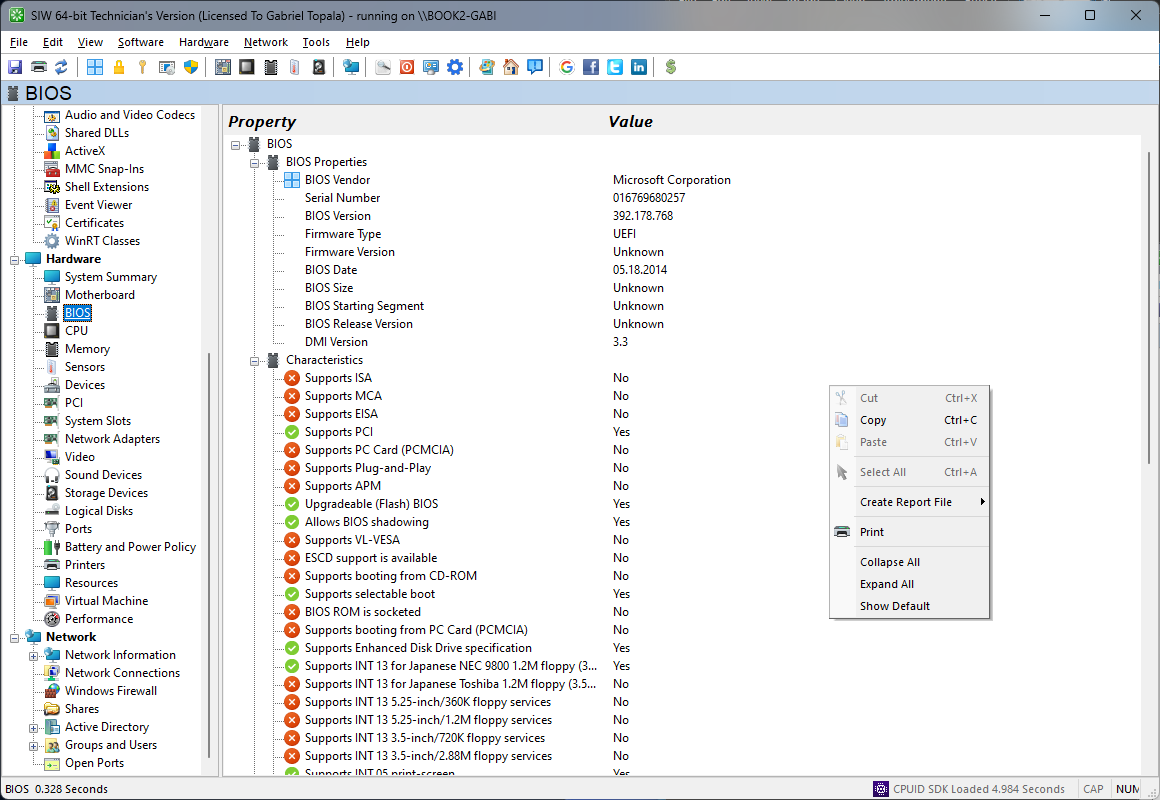
For example, a laptop vendor may document one pattern as "no memory detected" and another as "memory failure." Apply that distinction only to the model covered by the vendor's documentation. Do not turn a code from one manufacturer into a universal instruction to replace RAM.
Choose the documented check before opening the case
- If the computer reaches a boot menu, run its built-in hardware diagnostics and save every error code, validation code, and service tag.
- Follow the manufacturer's power-reset procedure for the exact model. Disconnect AC power and nonessential peripherals only as the service documentation directs.
- If the manual identifies memory or another removable component, shut down fully, disconnect power, and follow the service guide's electrostatic-discharge precautions before accessing it.
- Repeat the original test after each change and record whether the beep pattern, lights, display, or boot behavior changed.
On a supported Dell computer that reaches the logo, the vendor documents pressing F12 and choosing Diagnostics from the One Time Boot Menu. Other vendors use different keys and menus. Use the procedure for your computer rather than guessing from a different model.
Do not flash the BIOS, replace a motherboard, or order memory solely from an internet beep-code table. If the case must be opened, use the model's service manual or ask a qualified technician. A diagnostic sound is evidence to investigate, not proof that a particular part should be replaced.
See the relevant Dell built-in diagnostics instructions when working on a Dell system, and use the manufacturer's support site for other brands.
Send support a usable record
Give support observations rather than a guessed fault category. Include the computer model, beep group, LED behavior, screen state, recent hardware or firmware changes, and the result of any built-in diagnostic test.
Computer model:
When the sound occurs:
Beep group and repetition:
LED or button pattern:
Last visible screen:
Recent changes:
Diagnostic result and error code:
"The test passed but startup still stops at the logo" is more useful than "the beeps mean bad RAM." Preserve the original recording and the complete diagnostic result until the repair is complete.
Frequently asked questions
Does one beep always mean something is wrong?
No. Some computers use a short beep to indicate that POST completed, while other firmware uses different sounds or no speaker signal at all. If startup continues normally, confirm the behavior in the model's manual instead of assuming failure.
Why did the beeping stop while a light kept blinking?
The speaker sequence and the diagnostic LED can be separate signals. Some systems stop repeating tones after a fixed number of cycles while the light continues. Record both patterns and look them up together in the vendor documentation.
Can a black screen be a display problem instead of failed startup?
Yes. A system can complete POST and begin Windows while the display path, monitor, cable, or graphics hardware fails. Note whether the keyboard responds, whether Windows sounds play, and whether an external display works. Do not label every black screen as a POST failure.
What if the sound starts only when I press a key?
If the computer is already in Windows and the sound follows Caps Lock, Num Lock, or Scroll Lock, review the keyboard accessibility settings and the Toggle Keys option. That behavior can be intentional and is separate from a startup beep code.